Member Management
Written By Janos Veres
Last updated 6 months ago
Member Management
Manage who can access your organization and what they can do.
Members List
Navigate to Settings > Members to see all members and their roles.
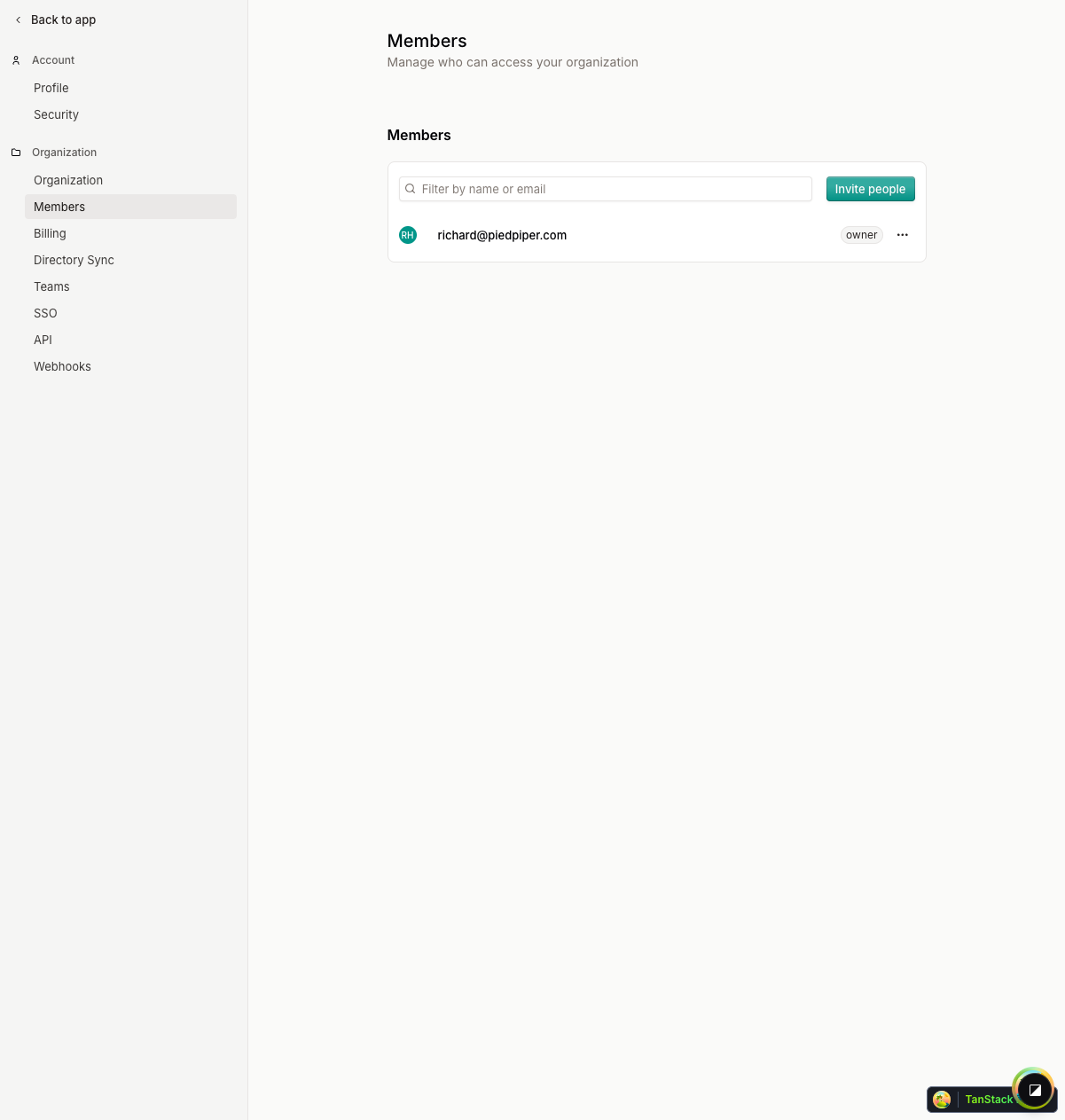
The members list shows each person's name, email, role, and status. You can filter by name or email using the search input.
Inviting Members
Click Invite people to add new members to your organization.
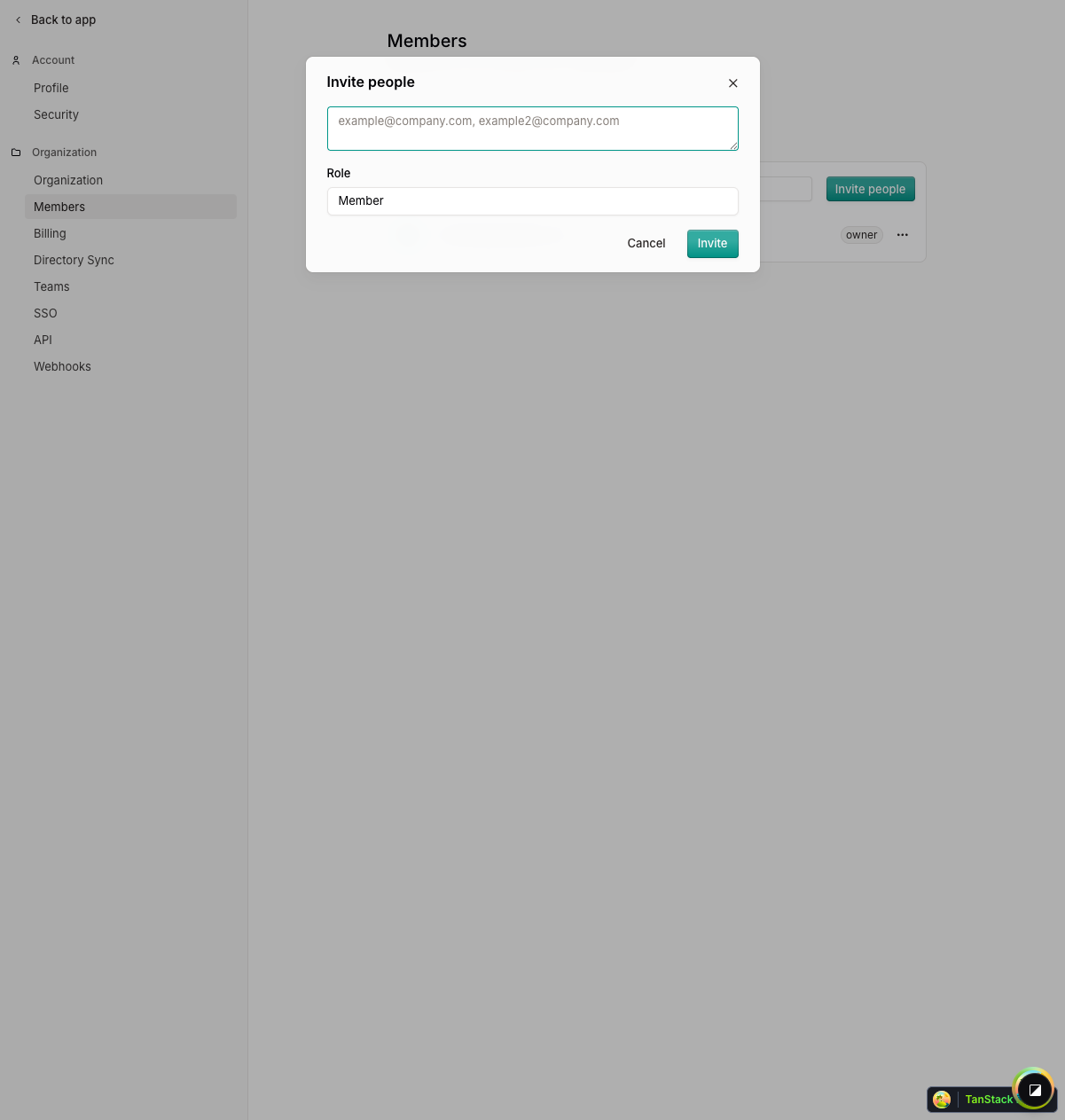
Enter email addresses and select a role for each invitee. Available roles:
Invitees receive an email with a link to join your organization.
Managing Roles
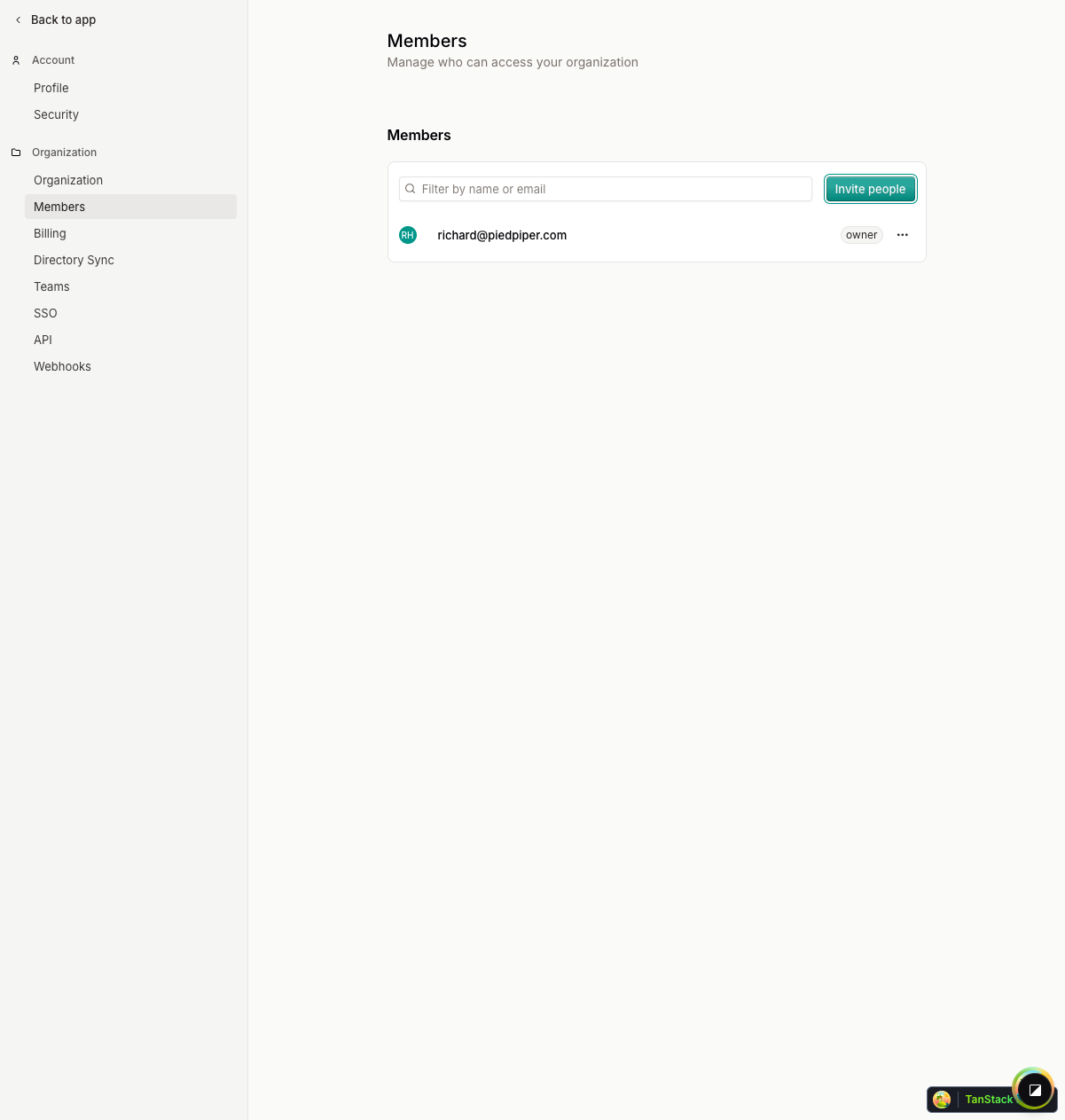
You can change a member's role at any time:
- Find the member in the list
- Click the menu icon on their row
- Select Change role
- Choose the new role
Additional member actions:
- Resend invitation — Re-send the invite email for pending invitations
- Cancel invitation — Revoke a pending invitation
- Remove member — Remove a member from the organization
What's Next?
Continue to Billing & Plans to learn about subscription management.