Working with Tasks
Written By Janos Veres
Last updated 6 months ago
Working with Tasks
Tasks are individual work items assigned to you within a process request. This guide covers how to view, complete, and manage your tasks.
Viewing Your Tasks
Navigate to My Tasks from the sidebar to see all tasks assigned to you.
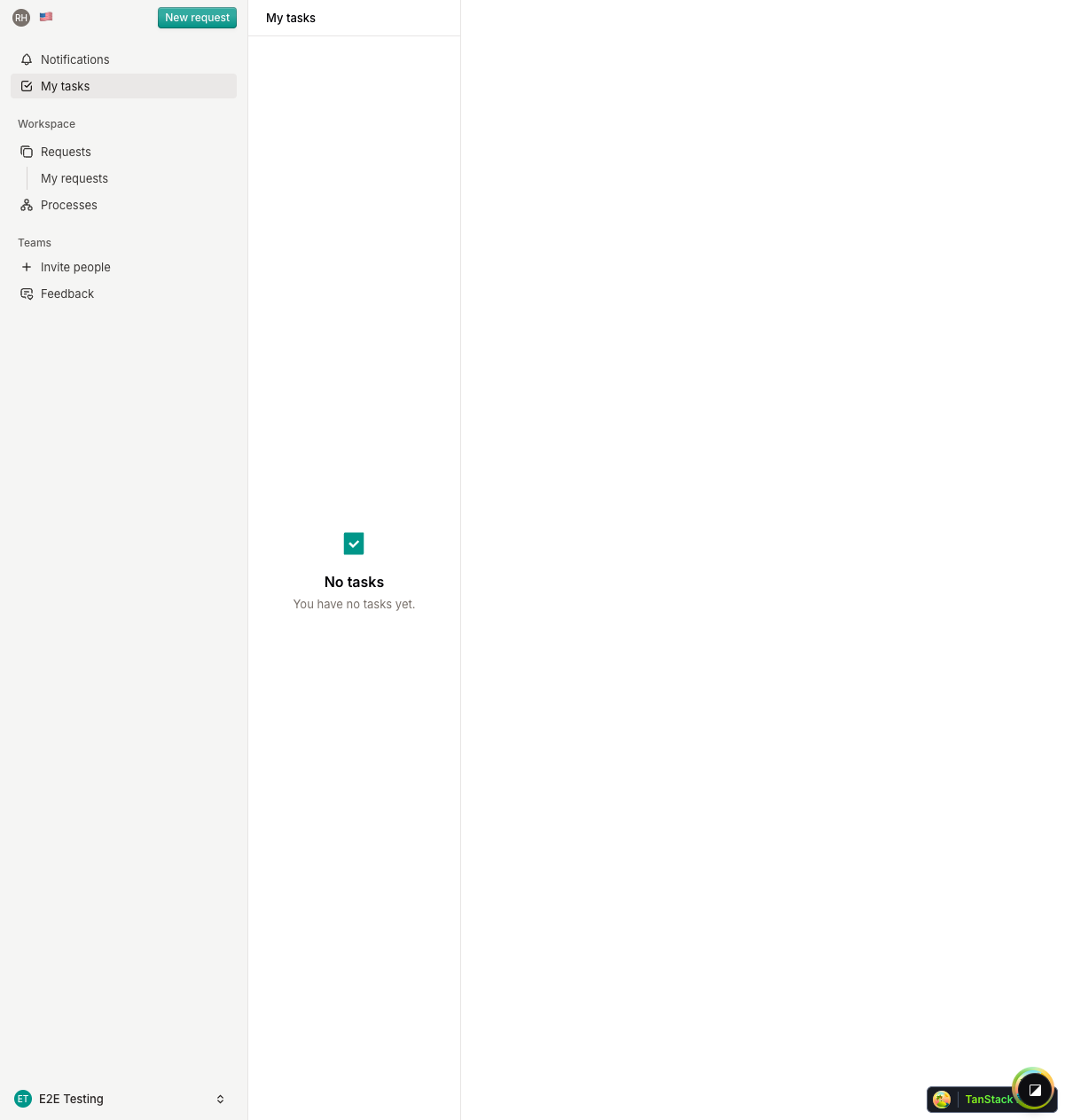
The task list shows each task with its name, the request it belongs to, and when it was last updated. Click on any task to open its form.
Completing a Task
When you open a task, you'll see the task form with instructions and input fields defined by the process owner.
Each task form may include:
- Description — Instructions and context for the task (displayed as formatted text)
- Form fields — Input fields you need to fill out (text inputs, dropdowns, toggles)
- Required fields — Fields marked as required must be completed before submission
Filling Out the Form
Complete the required fields according to the instructions provided.
Available Actions
At the bottom of the task form, you'll find action buttons:
Task Completion
After clicking Complete, the task will be marked as done and the request will advance to the next step.
[Screenshot: task-completed]
The completion view shows:
- Who completed the task
- When it was completed
- An option to Re-open the task if needed
What's Next?
Continue to Managing My Requests to learn about tracking your requests.