Getting Started
Written By Janos Veres
Last updated 6 months ago
Getting Started
Welcome to Lumen! This guide will walk you through creating your account and setting up your workspace.
Creating Your Account
To get started with Lumen, navigate to your organization's Lumen instance and click Sign Up.
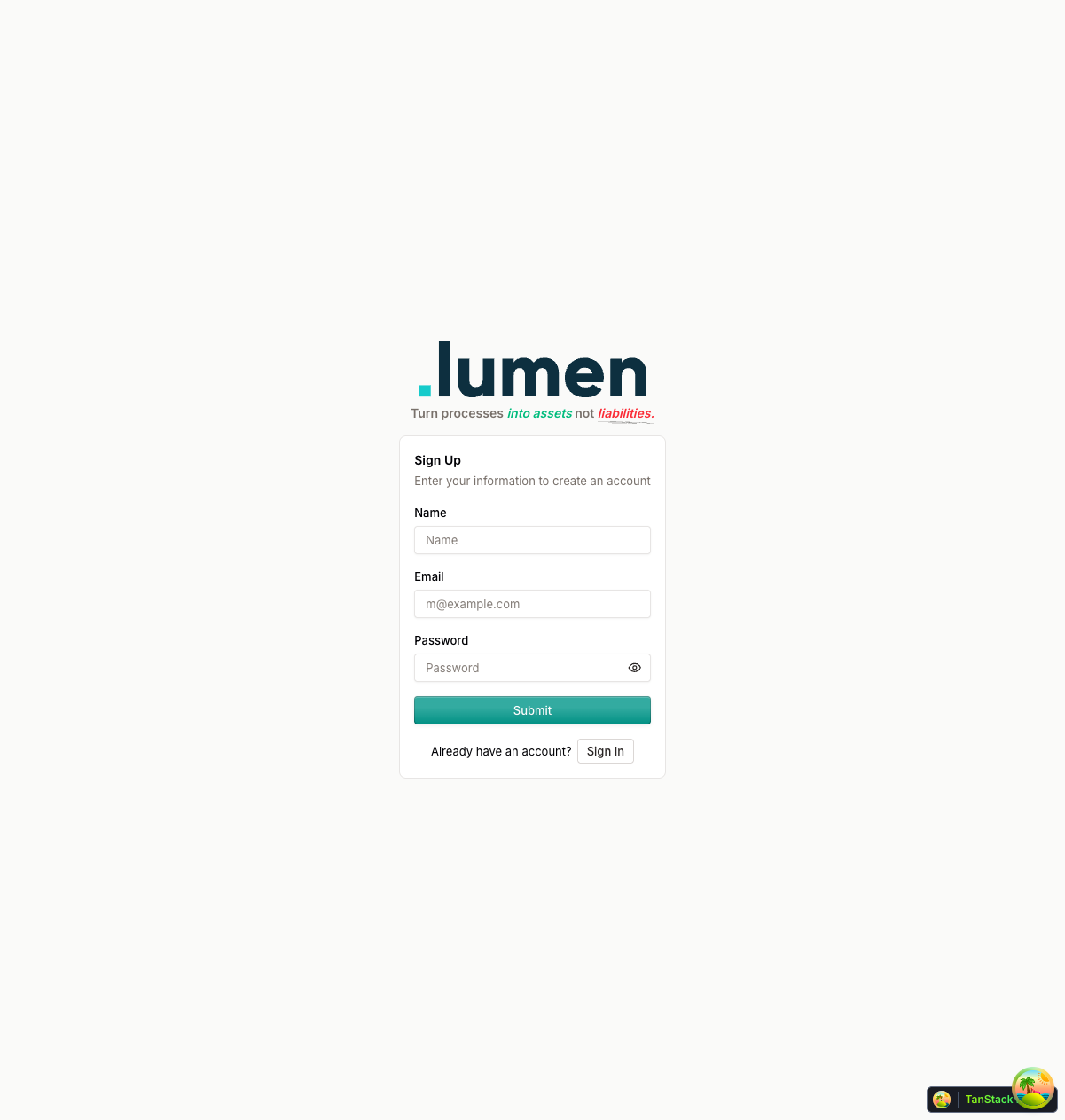
Fill in your name, email address, and create a secure password. You can also sign up using one of the available social login providers.
Signing In
If you already have an account, use the Sign In page to access Lumen.
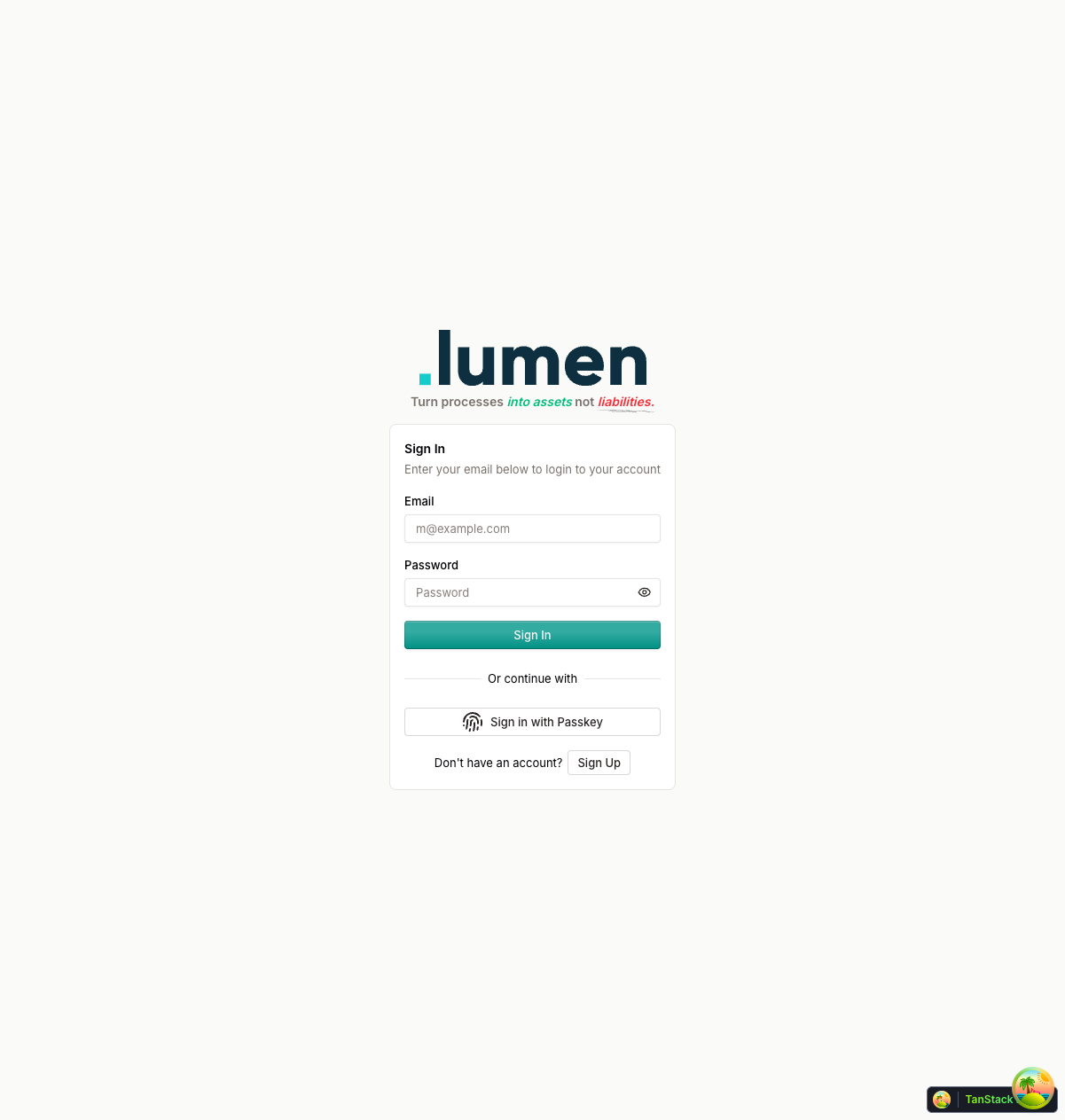
Lumen supports multiple authentication methods:
- Email & Password — Standard email and password login
- Magic Link — Receive a one-time login link via email
- Passkeys — Use biometric authentication (fingerprint, face ID)
- Single Sign-On — Log in through your organization's identity provider
Setting Up Your Organization
After your first login, you'll be guided through creating or joining an organization.
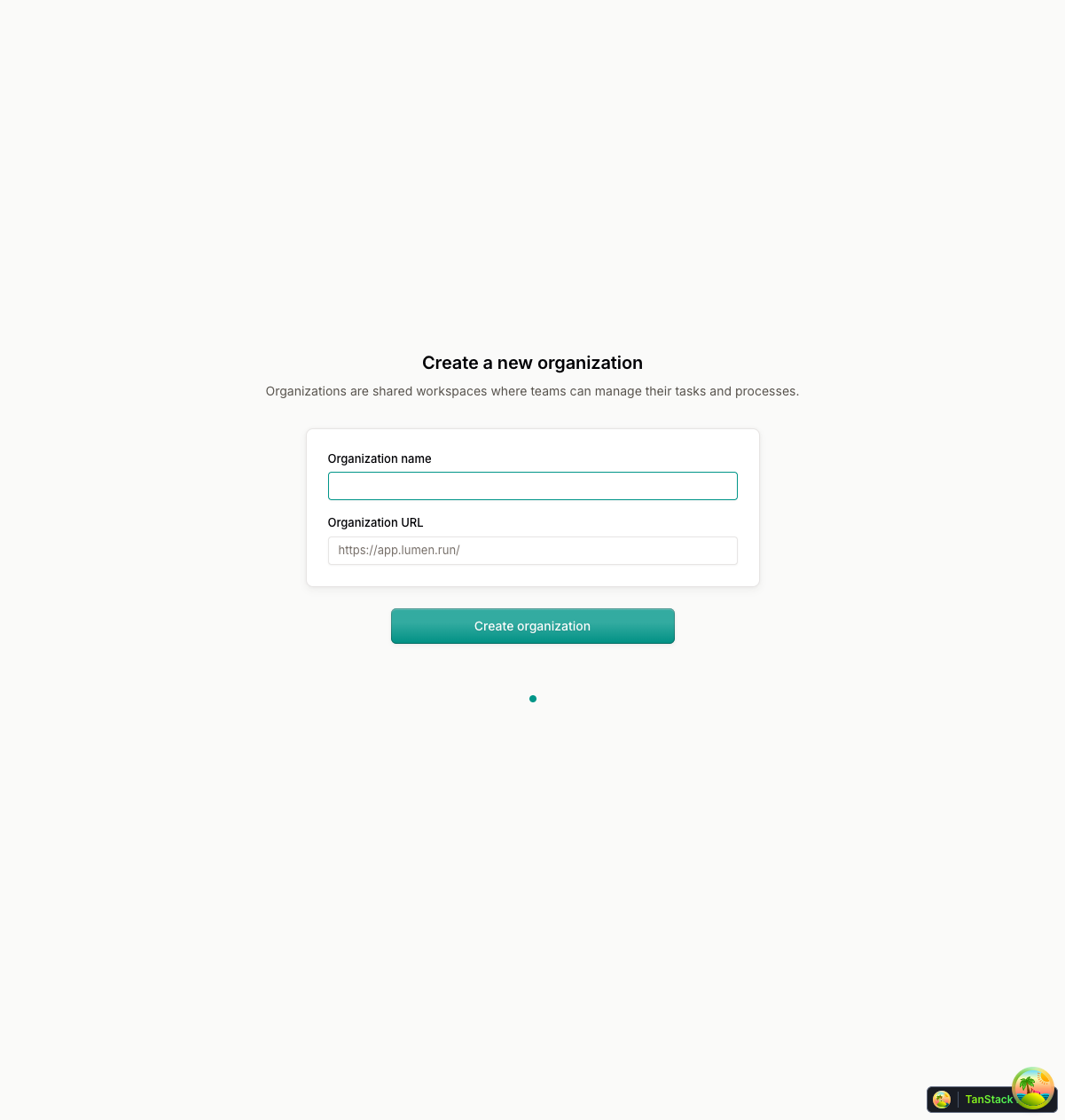
Enter your organization name — a URL-friendly slug will be generated automatically. This slug becomes part of your workspace URL.
Organization Setup
Complete the initial setup by configuring your organization.
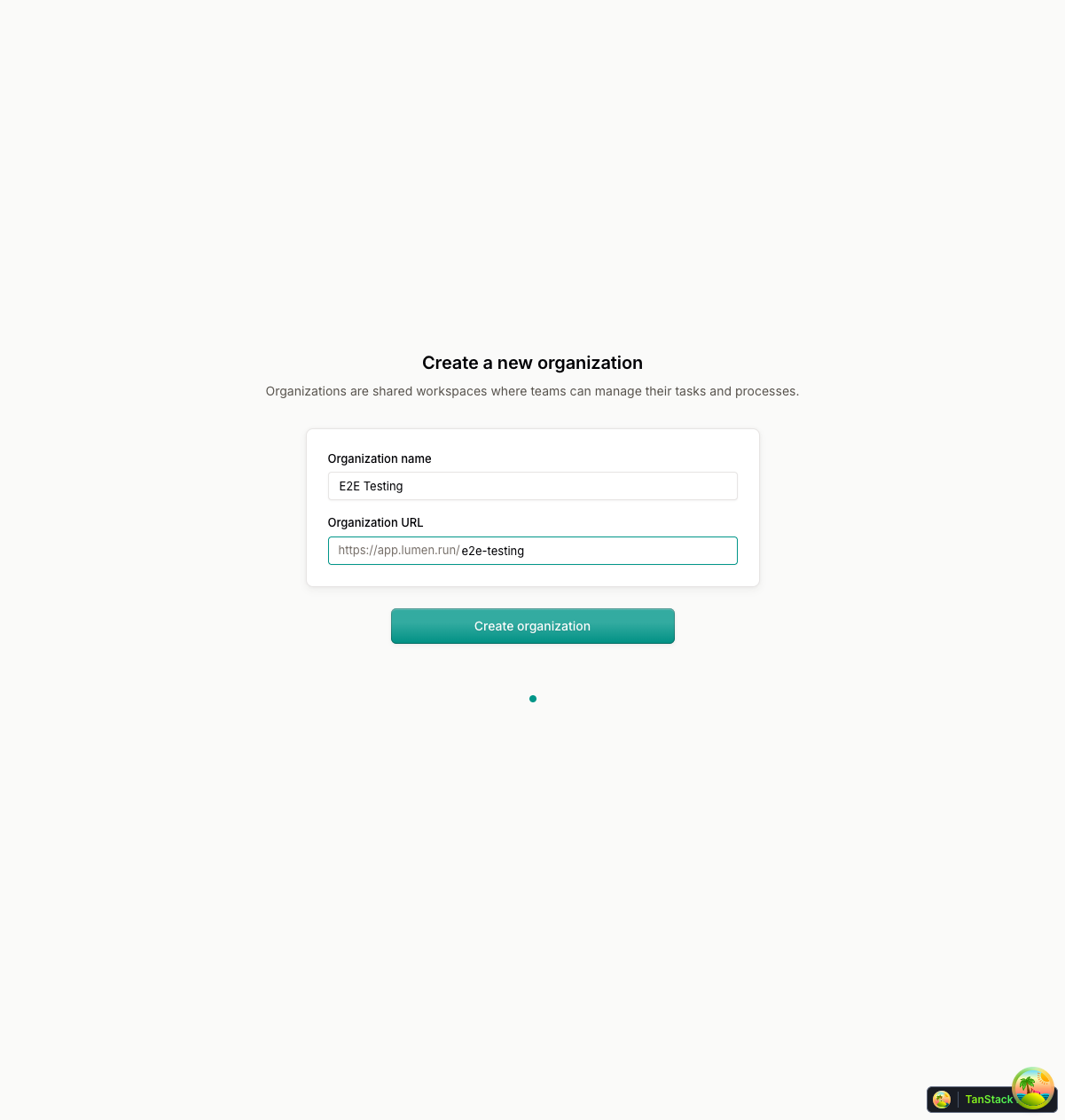
You can invite team members and configure basic settings during this step. Don't worry — all settings can be changed later.
What's Next?
Once your organization is set up, you'll land on your My Tasks dashboard. From here you can:
- View and complete assigned tasks
- Create new requests
- Navigate to different sections using the sidebar
Continue to Understanding the Dashboard to learn about navigating Lumen.