Understanding the Dashboard
Written By Janos Veres
Last updated 6 months ago
Understanding the Dashboard
The My Tasks page is your home in Lumen. It shows all tasks assigned to you across all processes and requests.
My Tasks View
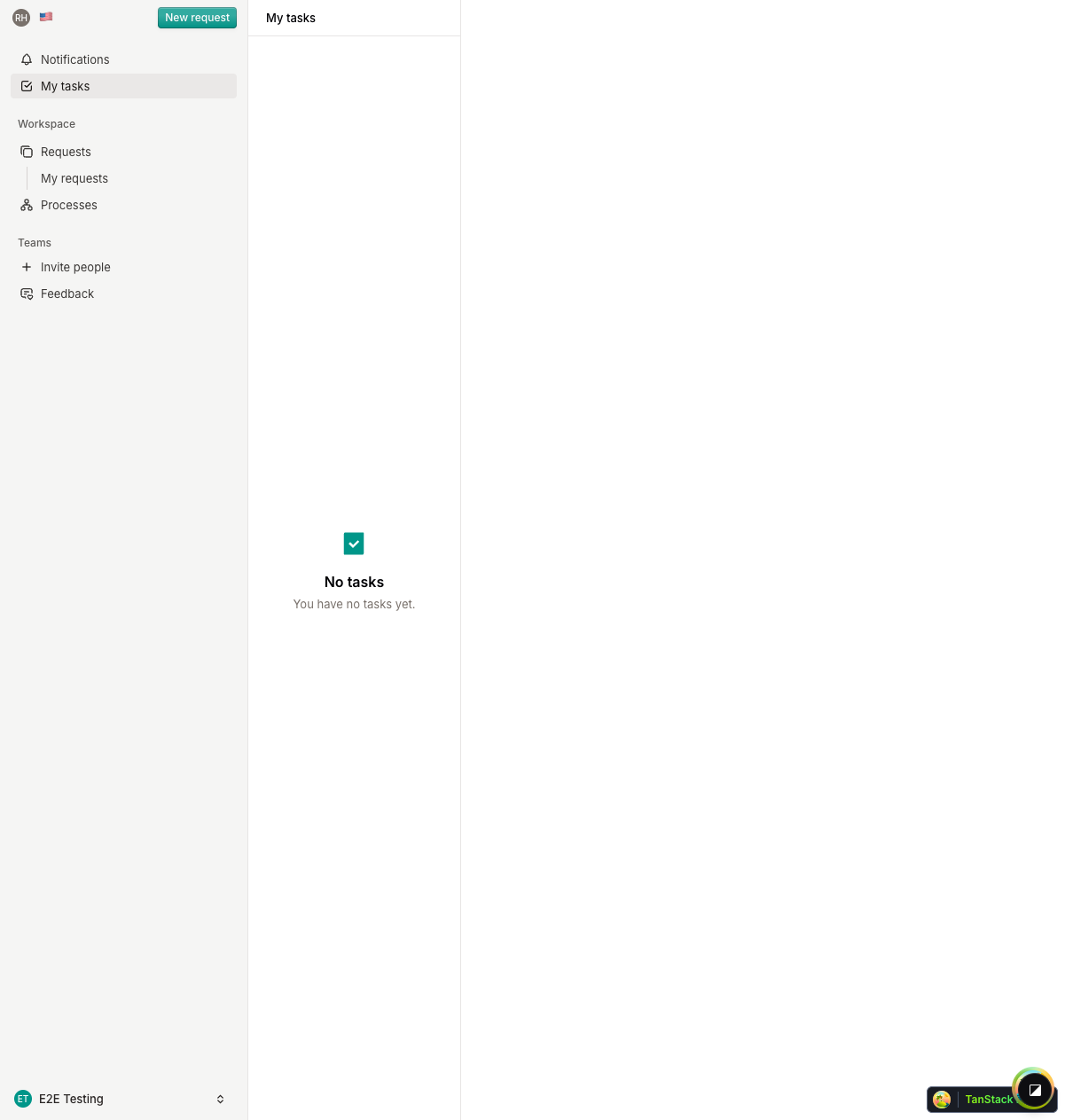
When you first sign in, you'll see your task list. Each task shows:
- Task name — The step you need to complete
- Request name — Which request the task belongs to
- Last updated — When the task was last modified
If you have no tasks assigned, you'll see an empty state encouraging you to start.
Sidebar Navigation
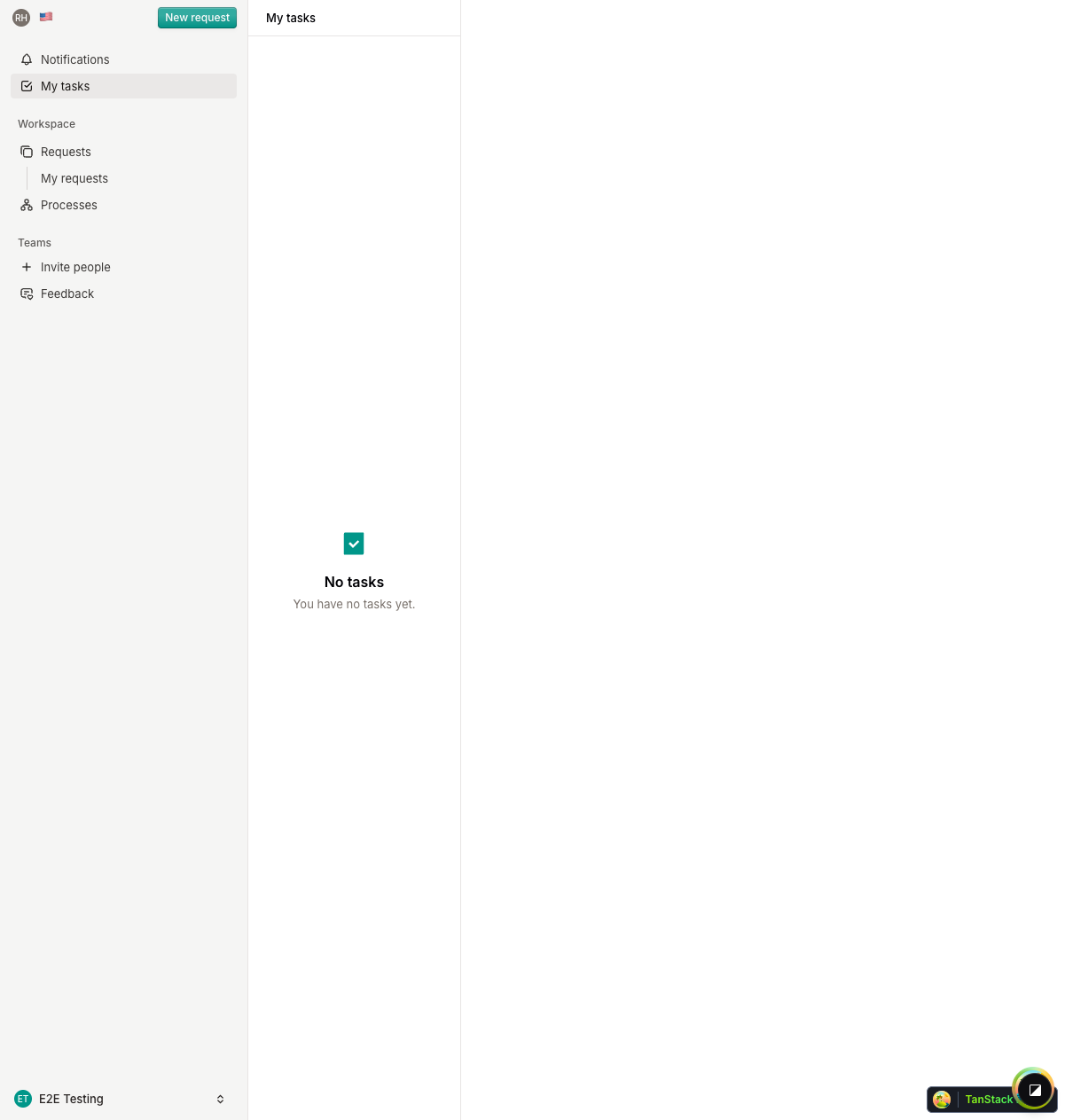
The sidebar provides quick access to all sections of Lumen:
Additional sidebar features:
- Notifications — Bell icon showing unread notification count
- New Request — Quick action button to create a new request
- Invite people — Send invitations to team members
- Send feedback — Submit feedback to the Lumen team
Switching Workspaces
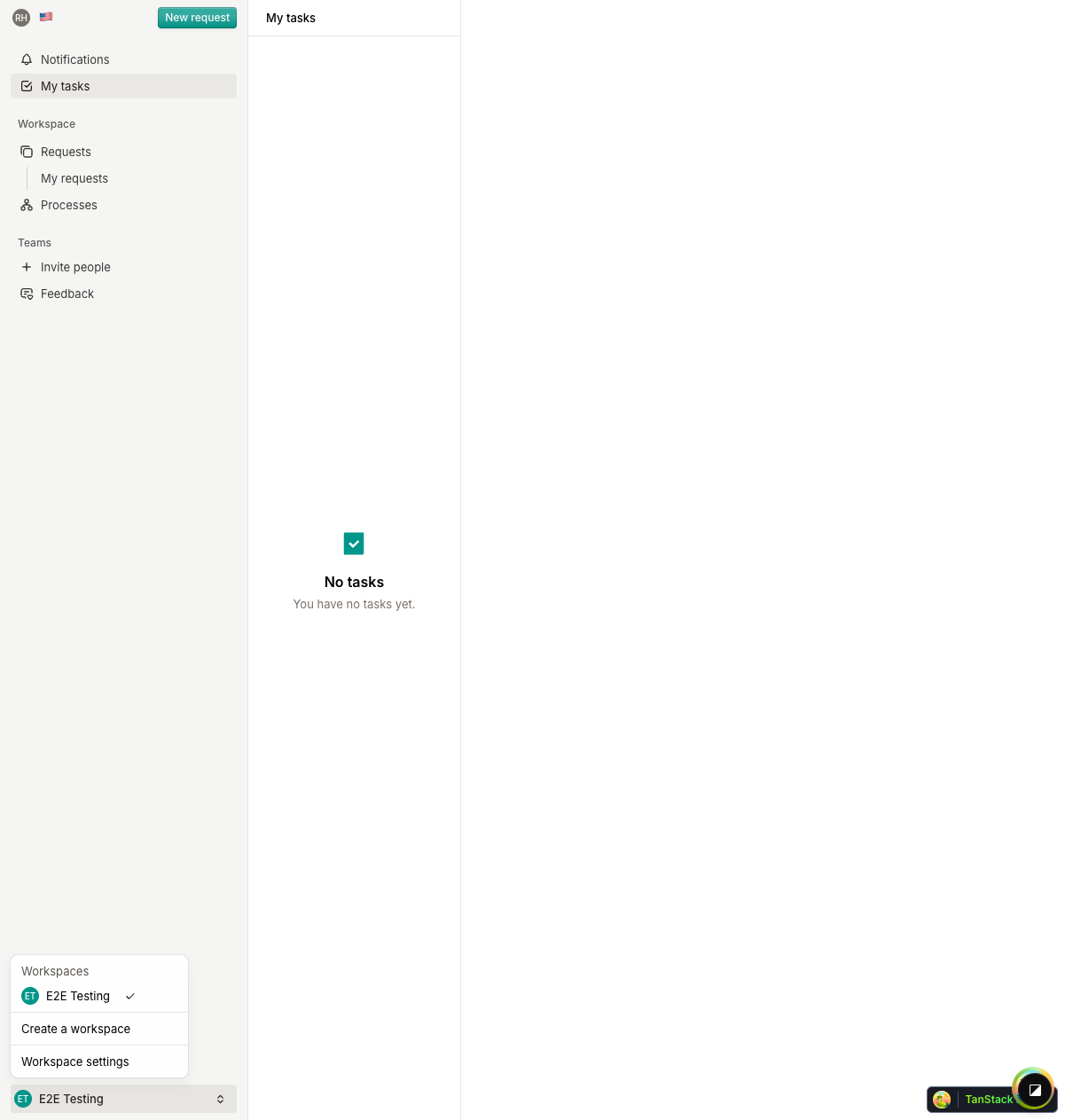
If you belong to multiple organizations, use the workspace switcher at the bottom of the sidebar to switch between them.
Keyboard Shortcuts
Lumen supports keyboard shortcuts for faster navigation:
- Navigate to Tasks — Use the configured hotkey
- Navigate to Requests — Use the configured hotkey
- Navigate to Processes — Use the configured hotkey
What's Next?
Continue to Working with Tasks to learn how to complete your assigned work.